In this article, you will learn about basic troubleshooting steps that can help you resolve the most common issues related to My Reports.
Check whether the report contains broken or erroring widgets. Broken widgets can prevent you from generating the report or saving changes, such as renaming the report or updating its logo.
Reset or delete the affected widgets, then try again.
If you’re a user of a corporate account and cannot schedule reports due to a limit error, make sure that the owner has shared the reporting limits with you.
If you have a long PDF report, note that there is a technical limitation of 50 images per file. Any reports where the number of images exceeds the limit won’t be generated.
If you see an “Over Your Reports Base” message and cannot export a PDF, all of the Base report slots included with your subscription are currently in use.
Base report limits are cumulative and do not reset monthly. They represent a fixed number of report slots included with your subscription.
To check your limit and current usage, go to My Reports and click View balance in the top-right corner. The balance shows how many report slots you are currently using compared with your Base limit. For example, 5/3 means that 5 reports are currently saved against a Base limit of 3.
To resolve the issue, you can either delete a report you no longer need or purchase additional report slots.
Delete an existing report to free up a slot:
- Go to My Reports.
- Find a report you no longer need.
- Click the gear icon next to the report.
- Select Delete report.
- Once the report is deleted, the slot becomes available immediately, and you can export PDFs again.
Purchase additional report slots:
If you need to keep all your existing reports, you can purchase additional report slots.
Some My Reports features are available only for Pro reports and are marked with a diamond icon. For example, certain scheduling options require a Pro report.
If you are working with a Base report, Pro-only options cannot be used or saved. To use these features, upgrade the report to Pro.
If you see an upgrade message when downloading a report that uses Pro features, the report will be counted as a Pro report. Make sure you have a Pro report slot available before proceeding.
If you removed white-label settings from a report but still cannot save or schedule it, make sure the Semrush logo has been added back to the report.
White-label features require a Pro report. If the report no longer uses white-label features, adding the Semrush logo allows it to use the standard branding.
Generation of some big reports may take more time than a few seconds. The speed depends on the general number of widgets in the report, as well as the number of widgets that are using integrations with external services like Google Analytics.
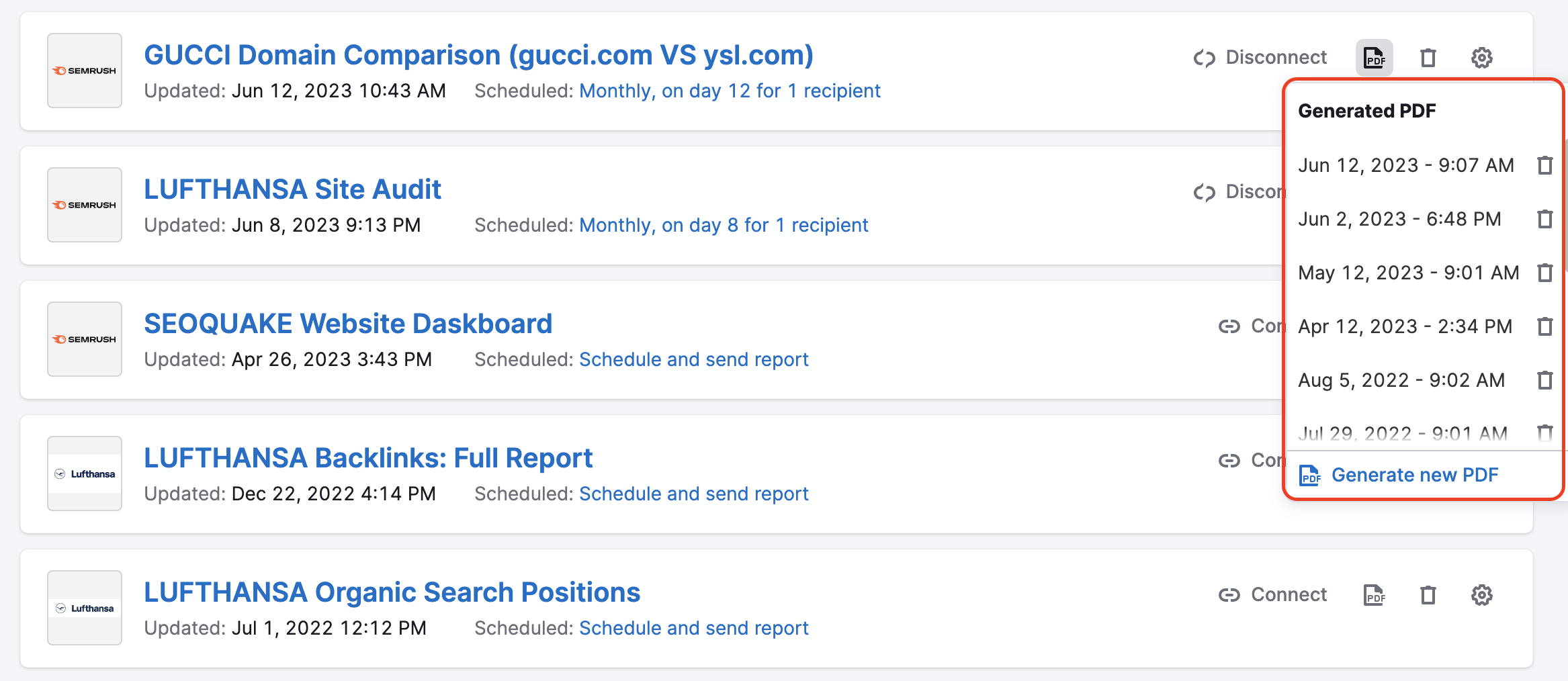
Once your report is generated, it will be sent out to the recipients or you can find it in the Report List. By clicking on the PDF icon next to your report in the report list, you can access all report versions to see exactly when each one was generated.
If you get blank widgets in the report or cannot apply changes to the widgets, please use a standard browser troubleshooting, sometimes browser extensions or vpn can interfere with the tool and affect the widgets:
- clear cache and cookies of your browser (ctrl+shift+delete/ shift+command+backspace; set time range to All time);
- disable browser extensions;
- disable vpn.
If an integration with one of the services has expired, you will see a notification at the top of your report and an exclamation mark in the affected widget.

To regain access, please click the “Refresh access” button in the widget and follow the instructions.
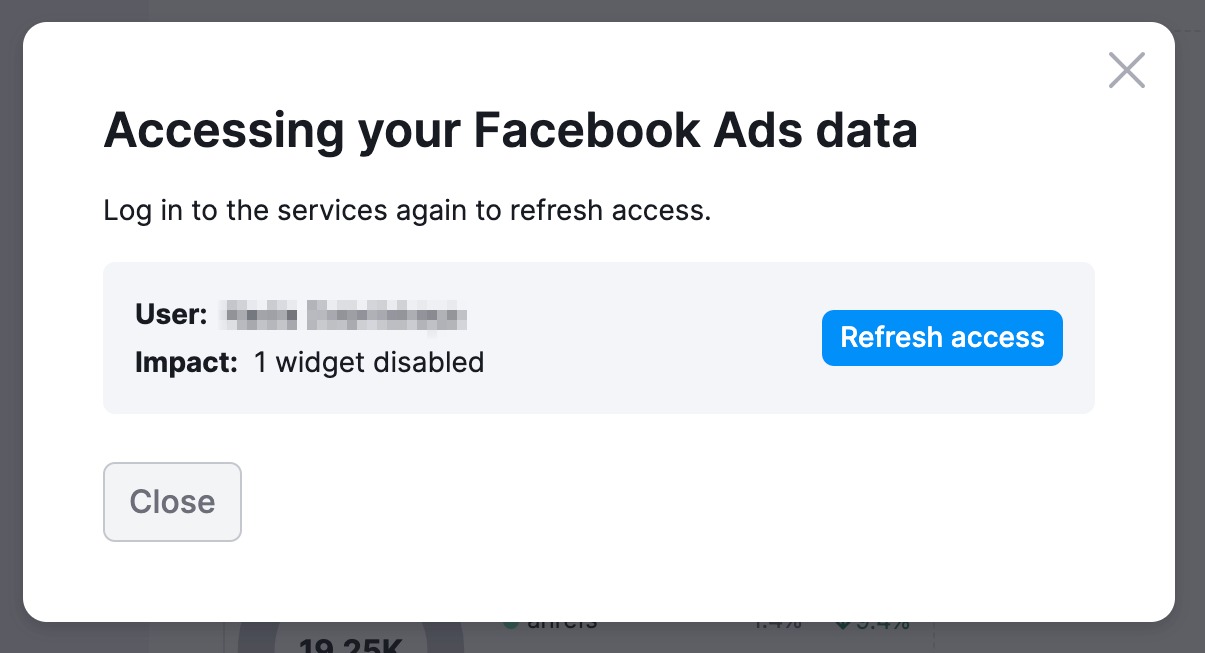

Once access is refreshed, we automatically trigger affected widgets to re-collect data.

Currently, there is a limit for the number of GBP accounts and associated locations that we can display—20 accounts and 100 locations.
There are two possible workarounds in this case:
- Splitting locations into “location groups”. To learn more about it, please refer to this article in GBP Help Center.
- Sharing the required locations with another GBP account and connecting that account to the GBP widget.
 Back to Semrush Toolkits category